Sunday, August 11, 2024

Missing firmware

If you have the missing firmware warnings similar to below, you can try this.

update-initramfs: Generating /boot/initrd.img-6.9.7+bpo-amd64
W: Possible missing firmware /lib/firmware/rtl_nic/rtl8126a-2.fw for module r8169
W: Possible missing firmware /lib/firmware/i915/mtl_gsc_1.bin for module i915
W: Possible missing firmware /lib/firmware/i915/dg2_huc_gsc.bin for module i915
W: Possible missing firmware /lib/firmware/i915/mtl_huc_gsc.bin for module i915
W: Possible missing firmware /lib/firmware/i915/mtl_guc_70.bin for module i915

1) Get firmware files from git repository

git clone https://git.kernel.org/pub/scm/linux/kernel/git/firmware/linux-firmware.git   --depth=1
or alternative, only required files from 

https://git.kernel.org/pub/scm/linux/kernel/git/firmware/linux-firmware.git/tree/

2)  copy the files download in (1) to corresponding path, e.g.

rtl8126a-2.fw => /lib/firmware/rtl_nic/

 mtl_gsc_1.bin => /lib/firmware/i915/

3) Run update-initramfs  -u again.  Warnings should be gone this time.


Sunday, July 21, 2024

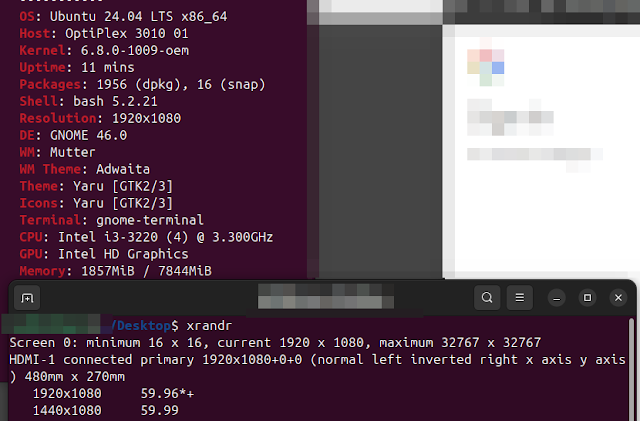
Intel i915 Graphic (Ivy Bridge) and Ubuntu 24.04 and DVI

After I upgraded by old Ivy Bridge machine Ubuntu 24.04, the machine won't boot into GNOME.  However if I started from recovery mode and then resumed the boot, I can get into GNOME fine.  After a bit of research, it seems for the i915 to work, the extra kernel parameter nomodeset needs to be added to the GRUB_CMDLINE_LINUX_DEFAULT in /etc/default/grub file.  Indeed after, nomodeset is added, the machine boots into GNOME as it should be.


GRUB_CMDLINE_LINUX_DEFAULT="quiet splash nomodeset usbcore.autosuspend=-1"


Just a reminder, for the settings to become effective, don't forget to run  updatre-grub2 after the changes!


Update 2024-07-28:

I finally managed to get DVI to work.  The solution is a rather odd one.  Instead of using UEFI, you simple switch back to the legacy BIOS.  Voila, DVI is back and working as it should.


Ubuntu 24.04 with i915 HD Graphics and DVI


Monday, January 22, 2024

Where to get Monkey Audio codec in Debian

If you are looking for non-free media codec, try https://debian.pkgs.org/12/multimedia-main-amd64/  I managed to obtain a copy of Monday Audio Codec from there.


sudo dpkg   -i    libmac10_10.16-dmo1_amd64.deb

sudo dpkg   -i   monkeys-audio_10.16-dmo1_amd64.deb

Thursday, September 7, 2023

BCM43142 & BCM43142A0 & Debian

If you have a computer with a BCM43142 wifi card like my Lenovo S20, you can get it working by using the broadcom-sta-dkms (https://packages.debian.org/buster/broadcom-sta-dkms) package from Debian's non-free repository.  

02:00.0 Network controller: Broadcom Inc. and subsidiaries BCM43142 802.11b/g/n (rev 01)


Also, BCM43142A0 can be enabled by using the package firmware-b43-installer (https://wiki.debian.org/bcm43xx)

Wednesday, June 14, 2023

Setting up .NET SDK on Ubuntu with snap

 On Ubuntu, you can easily set up dotnet using snap. (https://learn.microsoft.com/en-us/dotnet/core/install/linux-snap).


sudo snap install dotnet-sdk --classic

sudo snap alias dotnet-sdk.dotnet dotnet


However,  when you open a newly created project with vscode, you may get the error of complaining the SDK not being found.


It looks like this is due to the dotnet executable not being found at a location vscode is expected.  To overcome this, you simple create a symbolic link of the dotnet executable at /usr/local/bin (ref: https://github.com/dotnet/vscode-csharp/issues/3077)

cd /usr/local/bin

sudo ln -sv /snap/dotnet-sdk/current/dotnet   .


After, vscode should work as expected.