I have just upgraded my Linux desktop to 20.04LTS, and I can any immediate major issues/bugs.
Most modern OSes have disabled support to SMB1 by default due to known security issues. It is all good if you don't have any legacy devices. If you are like myself who still have one of these legacy device, you may need to re-enable the smb1 support.
To re-enable smb1 support, you need to edit your /etc/samba/smb.conf and add the line below to its [global] section.
client min protocol = NT1
Saturday, April 25, 2020

Saturday, April 18, 2020
Vulkan API
I have recently been told about this repository which helps to add Vulkan support to your Ubuntu installed. I must say I don't know how much difference it make to my install, but I guess it also does no harm.
https://github.com/lutris/lutris/wiki/Installing-drivers
https://github.com/lutris/lutris/wiki/Installing-drivers
Sunday, February 16, 2020
Who Is My DNS
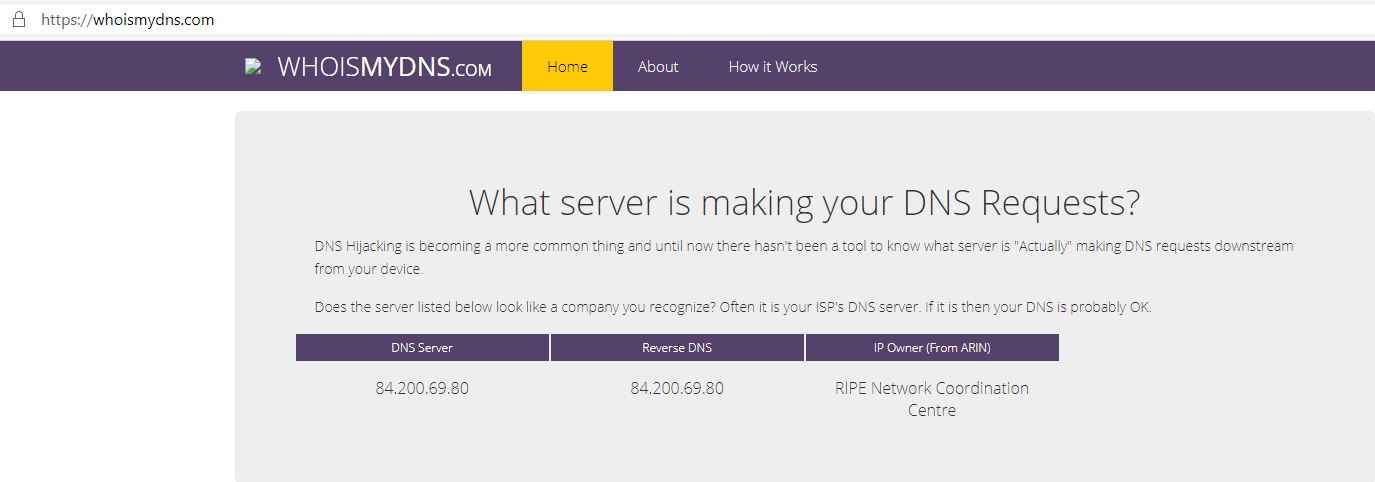
I may have mentioned in my previous post that my ER-X has its global DNS setting hidden in "Config Tree" section.

If you are like myself who has set the global DNS servers using the "Name Server" option in the System section, you may be using the wrong server without knowing it.

In order to avoid this happens again, I start to use whoismydns.org to verify my setup after any DNS changes, e.g.


If you are like myself who has set the global DNS servers using the "Name Server" option in the System section, you may be using the wrong server without knowing it.

In order to avoid this happens again, I start to use whoismydns.org to verify my setup after any DNS changes, e.g.
Saturday, February 15, 2020
PiHole and adlists.list
I have using Pi-Hole to remove ads from sites I visits, and here is the blocklist I am using in my set up.
https://raw.githubusercontent.com/StevenBlack/hosts/master/hosts
https://mirror1.malwaredomains.com/files/justdomains
http://sysctl.org/cameleon/hosts
https://zeustracker.abuse.ch/blocklist.php?download=domainblocklist
https://s3.amazonaws.com/lists.disconnect.me/simple_tracking.txt
https://s3.amazonaws.com/lists.disconnect.me/simple_ad.txt
https://hosts-file.net/ad_servers.txt
https://raw.githubusercontent.com/anudeepND/youtubeadsblacklist/master/domainlis
t.txt
https://raw.githubusercontent.com/anudeepND/youtubeadsblacklist/master/hosts.txt
https://raw.githubusercontent.com/vokins/yhosts/master/hosts.txt
https://1hos.cf/
https://raw.githubusercontent.com/deathbybandaid/piholeparser/master/Subscribabl
e-Lists/ParsedBlacklists/Adblock-YouTube-Ads.txt
https://raw.githubusercontent.com/Lerist/Go-Hosts/master/hosts-ad
https://raw.githubusercontent.com/jdlingyu/ad-wars/master/hosts
https://raw.githubusercontent.com/ZYX2019/host-block-list/master/Custom.txt
https://codeberg.org/Jeybe/pi-hole-blocklists/raw/branch/master/blocklist.txt
https://encrypt-the-planet.com/downloads/hosts
https://codeberg.org/WaLLy3K/pi-hole-blocklists
Office 365 and Access Engine
If you are developing an application using an Office 365 Access database, you may come across this error.
If you are like myself, the instant reaction is to look for an Office 365 runtime. Indeed there is one available, however, this does not only not solving your problem, but it also overtake your proper "full" Access when you are trying open an accdb file.

So, what should I use then? The answer is an Access Engine. You may ask WTF, an Access Engine? I am afraid I don't have an answer for this. I can only say the Access Engine works but the runtime doesn't. You can find the engine at:
https://www.microsoft.com/en-us/download/details.aspx?id=54920
After the installation, your application should be able to connect to OLEDB database as usual.
Here is an example I wrote:
using System;
using System.Collections.Generic;
using System.Linq;
using System.Text;
using System.Threading.Tasks;
using System.Data.OleDb;
namespace ConsoleApp1
{
class Program
{
static void Main(string[] args)
{
string connectionString =
@"Provider=Microsoft.ACE.OLEDB.12.0;Data Source=SampleDatabase.accdb;Persist Security Info=False;";
Console.WriteLine($"Connecction String: {connectionString}");
using (OleDbConnection conn = new OleDbConnection(connectionString))
{
conn.Open();
OleDbCommand cmd = conn.CreateCommand();
cmd.CommandText = "SELECT TOP 1 message FROM Sample";
string message = (string)cmd.ExecuteScalar();
Console.WriteLine($"Message from database: {message}");
}
}
}
}


If you still encounter the "Microsoft.ACE.OLEDB.12.0" error after installing the engine, you may want to change the platform target from ANY to x86 for 32bit or x64 for 64bit engine.


If you have stability issues, e.g. SSIS project keeps crashing when using OLEDB to connect to a data source, you may want to downgrade the engine to 2010 (https://www.microsoft.com/en-gb/download/details.aspx?id=13255)
System.InvalidOperationException HResult=0x80131509 Message=The 'Microsoft.ACE.OLEDB.12.0' provider is not registered on the local machine. Source=System.Data StackTrace: at System.Data.OleDb.OleDbServicesWrapper.GetDataSource(OleDbConnectionString constr, DataSourceWrapper& datasrcWrapper) at
If you are like myself, the instant reaction is to look for an Office 365 runtime. Indeed there is one available, however, this does not only not solving your problem, but it also overtake your proper "full" Access when you are trying open an accdb file.

So, what should I use then? The answer is an Access Engine. You may ask WTF, an Access Engine? I am afraid I don't have an answer for this. I can only say the Access Engine works but the runtime doesn't. You can find the engine at:
https://www.microsoft.com/en-us/download/details.aspx?id=54920
After the installation, your application should be able to connect to OLEDB database as usual.
Here is an example I wrote:
using System;
using System.Collections.Generic;
using System.Linq;
using System.Text;
using System.Threading.Tasks;
using System.Data.OleDb;
namespace ConsoleApp1
{
class Program
{
static void Main(string[] args)
{
string connectionString =
@"Provider=Microsoft.ACE.OLEDB.12.0;Data Source=SampleDatabase.accdb;Persist Security Info=False;";
Console.WriteLine($"Connecction String: {connectionString}");
using (OleDbConnection conn = new OleDbConnection(connectionString))
{
conn.Open();
OleDbCommand cmd = conn.CreateCommand();
cmd.CommandText = "SELECT TOP 1 message FROM Sample";
string message = (string)cmd.ExecuteScalar();
Console.WriteLine($"Message from database: {message}");
}
}
}
}


If you still encounter the "Microsoft.ACE.OLEDB.12.0" error after installing the engine, you may want to change the platform target from ANY to x86 for 32bit or x64 for 64bit engine.


If you have stability issues, e.g. SSIS project keeps crashing when using OLEDB to connect to a data source, you may want to downgrade the engine to 2010 (https://www.microsoft.com/en-gb/download/details.aspx?id=13255)
Tuesday, January 7, 2020
Setting Up UPnP in OPNSense for XBox
I know UPnP is bad but there are situations where you have no other options but giving in and using the UPnP such as getting XBox NAT state from "Strict" To "Open".
Here are steps I have taken to enable UPnP for my Xbox.
1) Install os-upnp plugin.
Under System -> Firmware -> Plugins, look for os-upnp and install this plugin if you haven't already done so.
2) Give your XBox a static IP.
You can either do this by manually assigning an IP to your XBox, or by using reserved IP option.
3) Enable UPnP Service
Under Services -> Universal Plug and Play, enable options as shown in the diagram below. Use the IP you set in (2) for the masked part.

4) Create an Aliases for devices intending to use UPnP
Under Firewall -> Aliases, create an alias as below. In the content box, enter the IPs of devices which are intending to use the UPnP service.

5) Change the Firewall:NAT:Outbound modem to hybrid.

6) Add the manual rule for port forward
Under Firewall -> NAT -> Outbound, add a manual rule similar as shown in the diagram.

With the setup above, your Xbox should show its NAT state as Open. (you may need to reboot your XBox)
The above tutorial is based on an article I found at:
https://www.tweaking4all.com/network-internet/pfsense-strict-nat-xbox-one/
Hope you find this useful.
Here are steps I have taken to enable UPnP for my Xbox.
1) Install os-upnp plugin.
Under System -> Firmware -> Plugins, look for os-upnp and install this plugin if you haven't already done so.
2) Give your XBox a static IP.
You can either do this by manually assigning an IP to your XBox, or by using reserved IP option.
3) Enable UPnP Service
Under Services -> Universal Plug and Play, enable options as shown in the diagram below. Use the IP you set in (2) for the masked part.

4) Create an Aliases for devices intending to use UPnP
Under Firewall -> Aliases, create an alias as below. In the content box, enter the IPs of devices which are intending to use the UPnP service.


6) Add the manual rule for port forward
Under Firewall -> NAT -> Outbound, add a manual rule similar as shown in the diagram.

With the setup above, your Xbox should show its NAT state as Open. (you may need to reboot your XBox)
The above tutorial is based on an article I found at:
https://www.tweaking4all.com/network-internet/pfsense-strict-nat-xbox-one/
Hope you find this useful.
Saturday, October 12, 2019
PiHole and x86
I was going to set up PiHole for a friend. Since she has an old Netbook available, I think why not using it. This sounds logical right? It would be if most distros are not 64bit only in their latest version. Also, I am looking for something small and lightweight.
At the end, I picked Linux Lite (https://www.linuxliteos.com/). Their Series 3 is still available in 32bit and because it is based on Ubuntu LTS, it is still in support till 2021.
Linux and PiHole installation is pretty standard and straightforward.
If you have issue to access the PiHole, you may want to check the firewall setting in Linux Lite. Also, it is worth to check the power saving option too to ensure the computer won't got to sleep.
Subscribe to:
Posts (Atom)